Key points
- Less time looking for parts: stock, shelves, value and history for any part are on one page, with Receive, Issue, Move and Count at the top.
- Fewer receiving mistakes: a delivery is counted against its purchase order line by line, as it is scanned.
- No more parts that left the store without a trace: each one is issued to a job and signed for by the person who took it.
- Any handheld barcode scanner works with no setup, and every warehouse screen works on a phone.
Find any part, and act on it, from one page
"Do we have it, and where is it?" used to mean opening several screens. The new Stock page answers it in one place: your parts on the left, the part you choose on the right.
- Where it is, shelf by shelf, with a Move button beside each place.
- What it is worth, oldest stock first, so the value on screen matches the value in your books.
- What is already on order, so nobody orders the same part twice.
- What happened to it lately: every receipt, issue and move, with the machine and work order it went to.
- Filters that answer real questions: below minimum, out of stock, no shelf, fits a given machine, by supplier, not moved for 90 or 180 days, not priced.
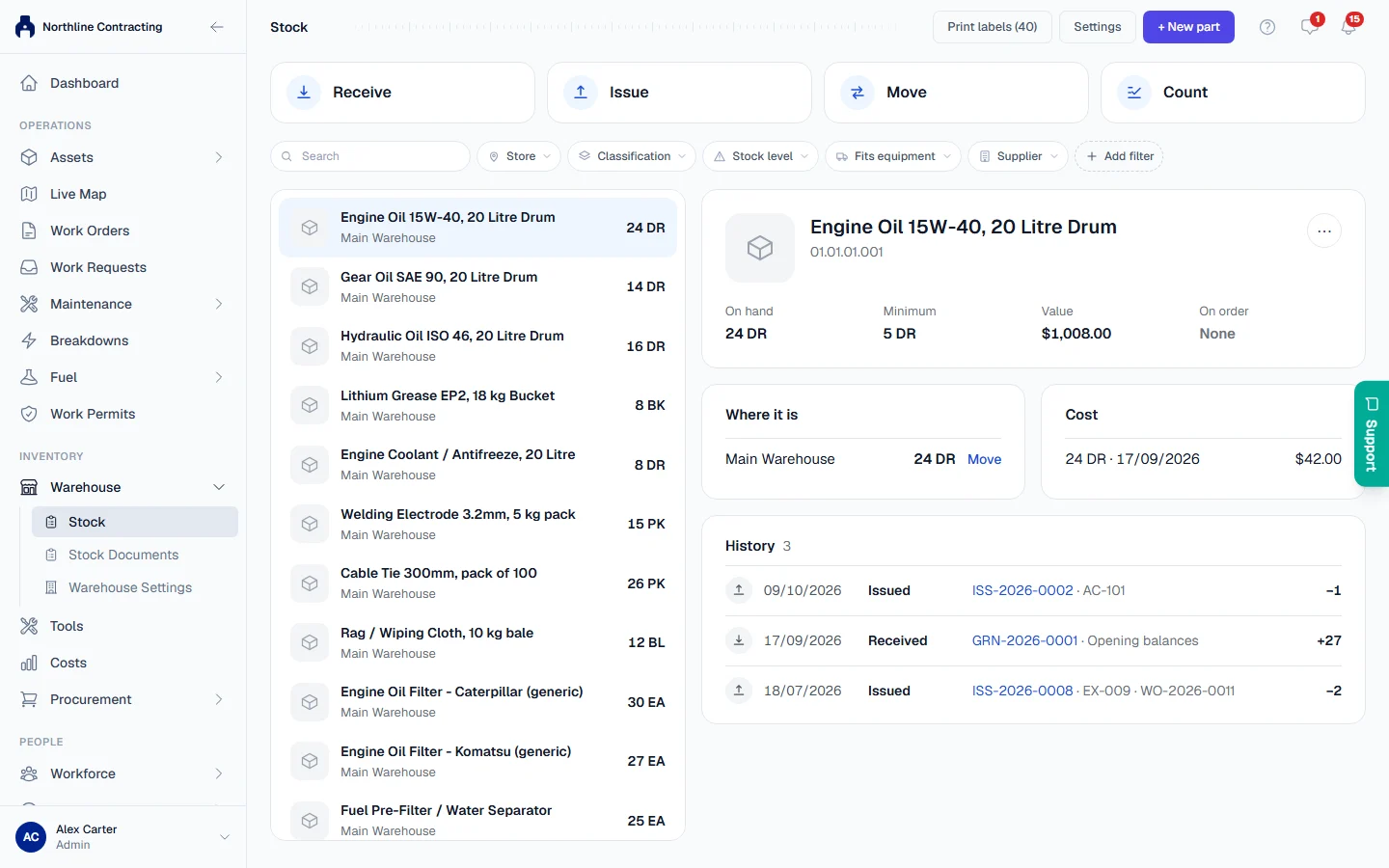
Step by step: The Stock page in the Help Center.
Receive deliveries against the order, not from memory
Most stock errors start at the gate: a short delivery accepted as complete, or a part put on the wrong shelf. Receiving now starts from the purchase order, so the order itself is the checklist.
- Pick the order, or scan the barcode now printed on every purchase order PDF.
- Each scan counts towards its line ("1 of 2"), so a short delivery shows up before anyone signs for it.
- Each line goes onto its own shelf, so stock is where the system says it is from the first day.
- Add the invoice number and date, record parts that came without being ordered, and close off what will not come, on the same screen.
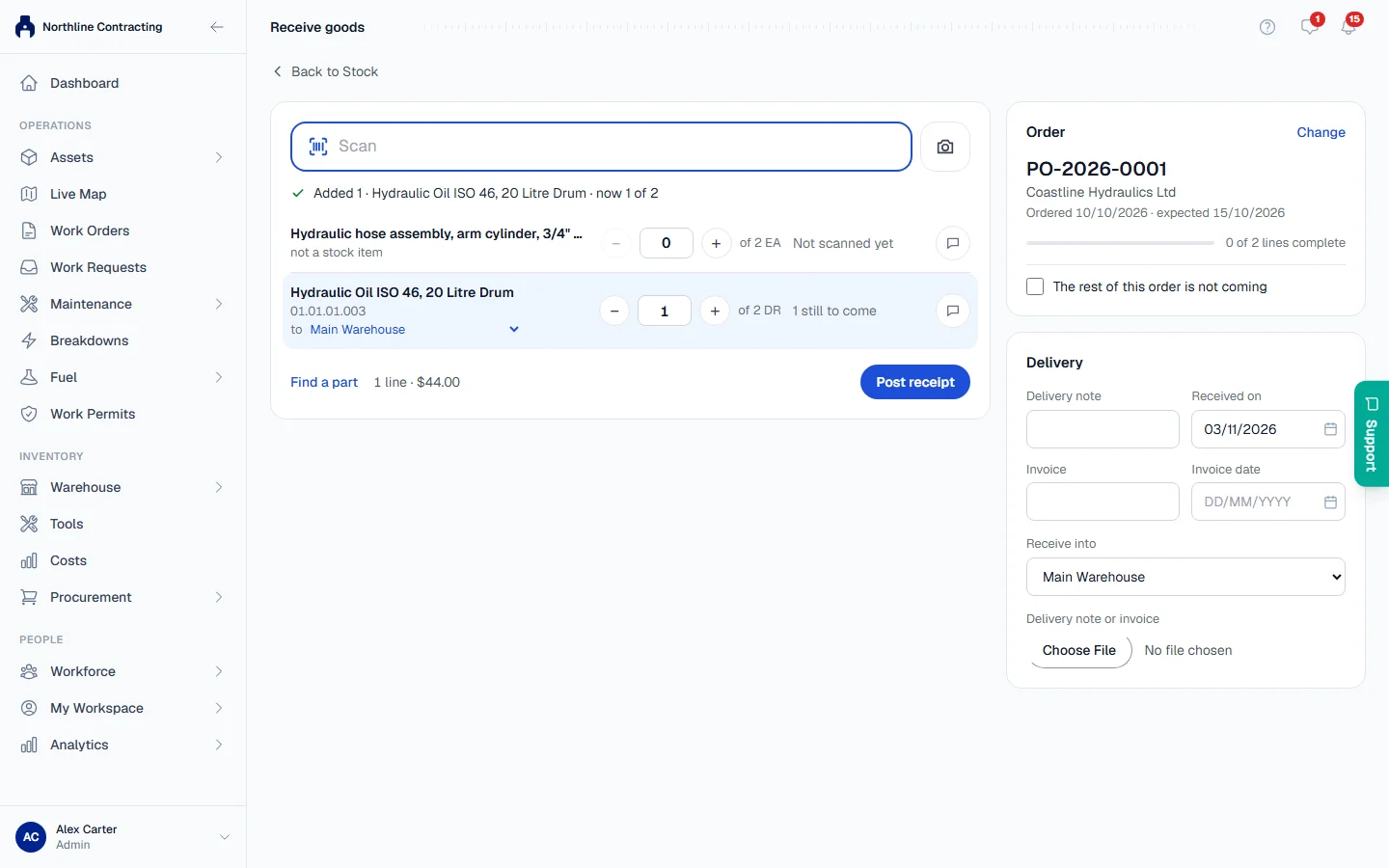
Step by step: Receive goods in the Help Center.
Know which job used the parts, and who took them
Parts that leave the store with no job and no name behind them are where stock and money quietly disappear. In V3, every issue says what it was for and who collected it.
- Issued to the job. The store issues parts to a work order, a machine or a person. When the technician finishes the work, they pick from what was issued instead of searching the catalogue, so each part is counted and costed once.
- Parts still out are flagged. If a job closes with parts not fitted, your storekeepers are told, so leftovers come back to the shelf.
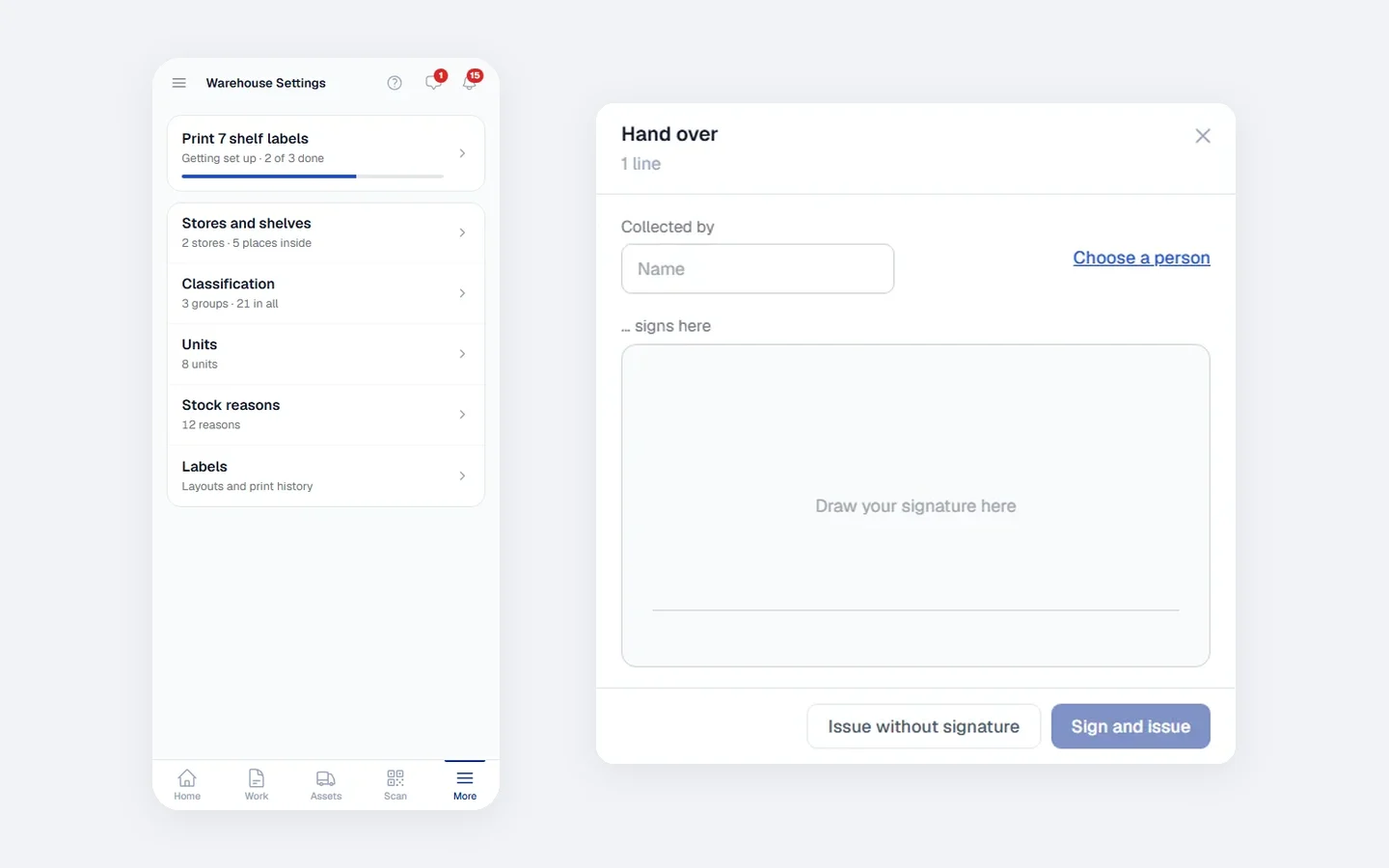
- A signature at the counter. The person who collects the parts signs on a phone or tablet. The document shows who took them.
- Corrections that keep the books right. Unused parts are returned against the original issue at their original cost. Damaged returns go to damaged stock or quarantine. A document posted by mistake can be reversed, with a reason.
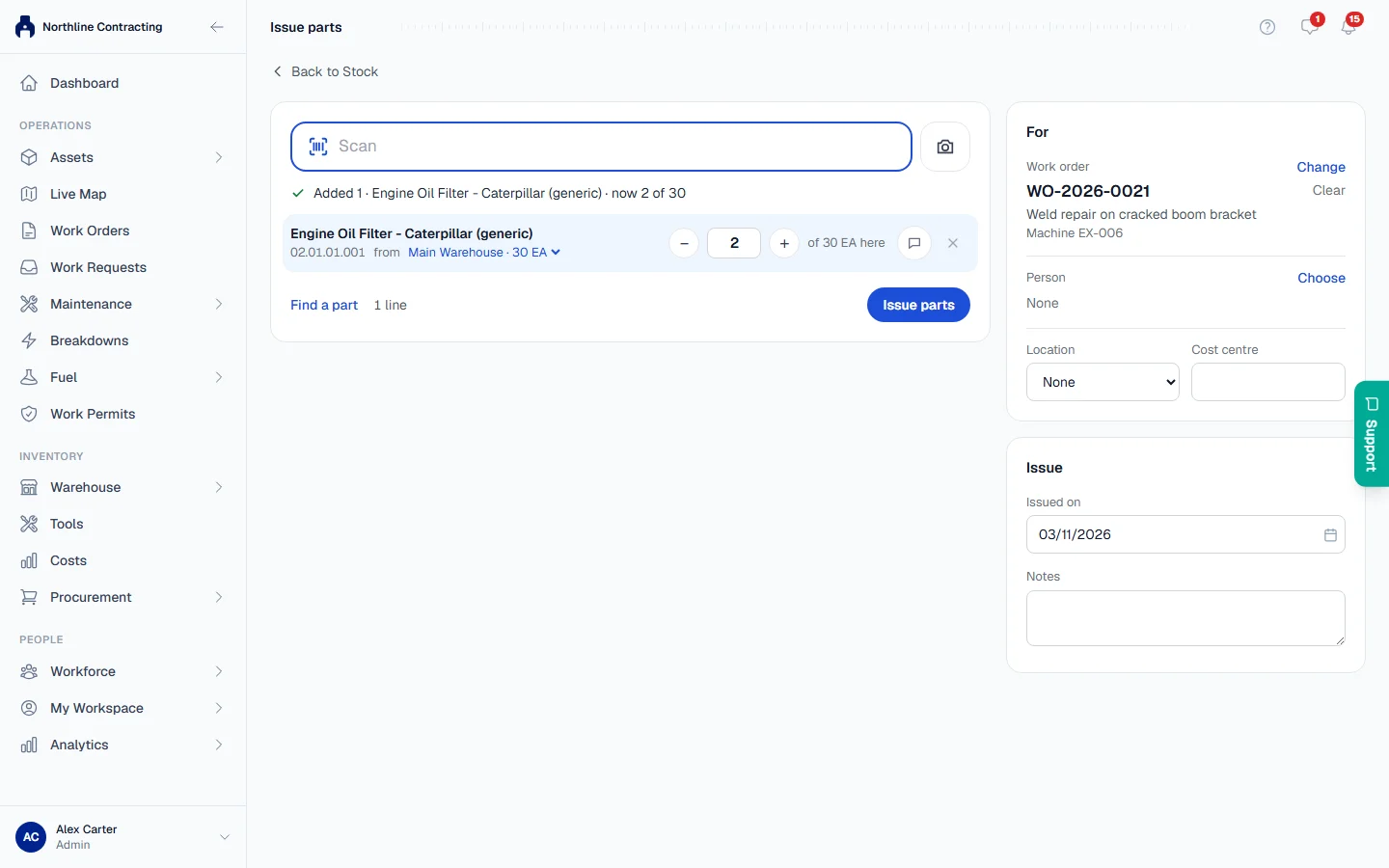
Step by step: Issue parts in the Help Center.
Move stock and set up shelves in minutes
Moving parts between shelves takes three scans: the shelf they come from, the shelf they go to, then the parts. If a move empties a part's usual shelf, Solmex offers to make the new shelf its home, so the next person looks in the right place. A move made by mistake is undone with one button.
Warehouse Settings show your stores, racks, shelves and bins as a tree you can walk through, with which shelf labels have been printed and which have not. Shelves can be added many at a time.
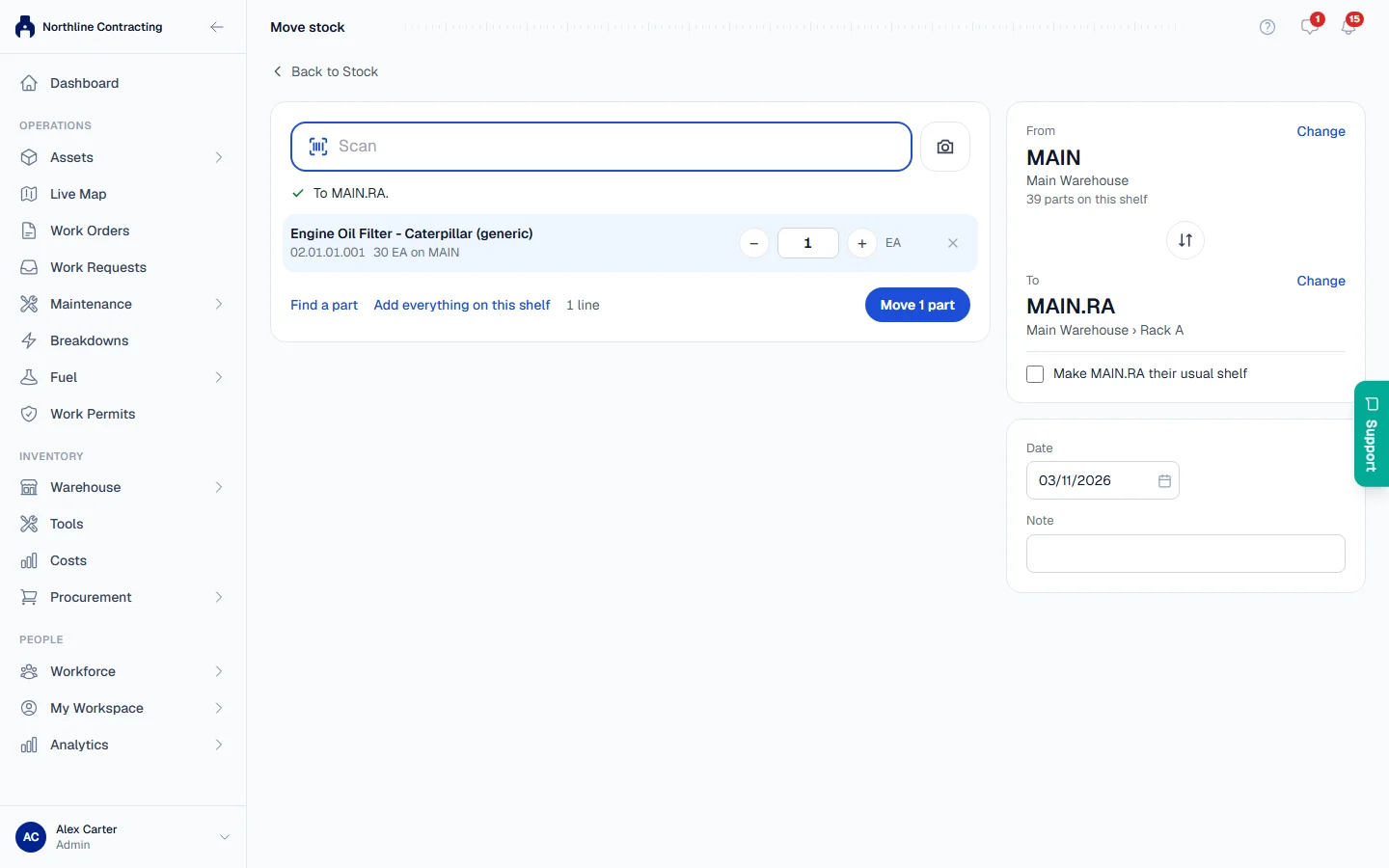
Step by step: Transfer stock and Set up storage locations in the Help Center.
Barcode scanners work out of the box
Typing part numbers is slow and error-prone. In V3, scanning is the fastest way to do every warehouse task.
- Any handheld scanner. USB or Bluetooth, Zebra, Honeywell or any other brand that types like a keyboard. No drivers and no setup.
- No need to click into a box first. The page picks up the scan wherever you are on it.
- Works with Turkish keyboards. A scanner left on a US layout still reads correctly on a PC set to Turkish.
- One scan, the right action. Part labels, shelf labels, purchase orders, work orders and machine labels: each page knows what to do with each.
- You hear the result. One high beep means the scan did something; two low beeps mean it did not.
- The phone camera as a scanner on Android phones, from the camera button beside every scan box.
Made for the phone
Storekeepers spend their day on their feet, not at a desk. Every warehouse screen now works on a phone: the parts list fills the screen, a part opens full screen, and Receive, Issue, Move and Count are right there on the part. Setting up a new store on a phone comes with a short checklist: your first store, your classification and your first shelf labels.
Quicker on large stores and slow site connections
- Every filter searches your whole store, not only the rows already loaded on screen, so a result is complete the first time.
- A part opens with everything about it in one request, however long its history.
- The parts list no longer downloads photos; only the part you open loads its picture. That matters on a site connection or phone data.
The Help Center is updated
Every warehouse article in the Help Center has been rewritten for V3, in English and Turkish, with new screenshots. The ? button at the top of any warehouse page opens the article for that page.