Key points
- Start the day knowing what is wrong: the machines that are down and the ones overdue for service, in one sentence.
- Act without hunting for the right page: every machine and request that needs you has one button, Open, Raise work order or Decide.
- No surprises in the week: services and work orders due in the next seven days, day by day.
- A quicker start for a new company: a setup guide in place of empty figures until the first Locations and machines are in.
Start the day knowing which machines need you
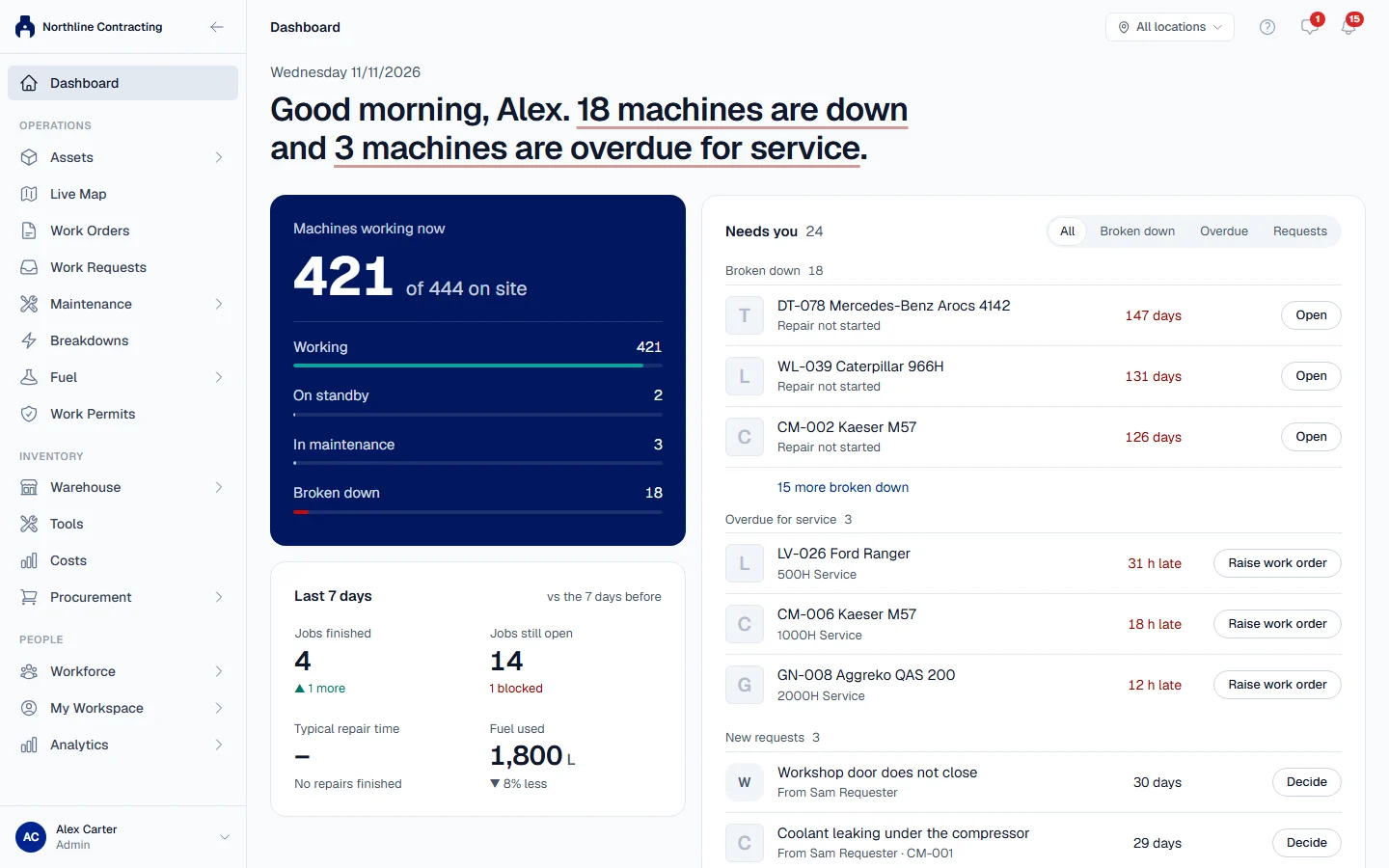
The first question of a maintenance morning is always the same: what is down, and what is late? It used to mean reading several widgets and adding them up. Now the top of the dashboard answers it in one sentence, such as "18 machines are down and 3 machines are overdue for service." Each half of the sentence is a button that lists those machines.
- Machines working now: how many of the machines on site are working, on standby, in maintenance or broken down.
- Last 7 days: jobs finished, jobs still open, the typical repair time and the fuel used, each against the week before.
- One Location at a time: a company working across several sites chooses one at the top of the page, and every figure follows it.
Step by step: The dashboard in the Help Center.
Act on every problem from the same page
Seeing a problem is only useful if acting on it is quick. Needs you lists what is waiting on your team, each with the machine's photo and one button:
- Machines broken down, longest first, with where each repair stands, such as waiting for parts. Open goes to the breakdown.
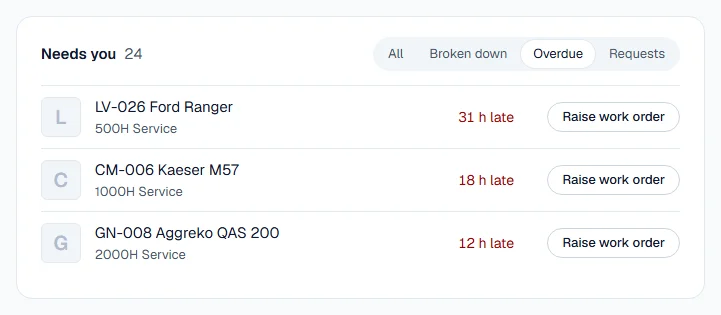
- Machines overdue for service, with how late each one is, in hours, kilometres or days, the way its maintenance plan counts. Raise work order creates the job, or the row shows the work order already raised.
- Work requests waiting for a decision, oldest first. Decide opens the request to turn it into a work order or a breakdown, or to close it.
Choose All, Broken down, Overdue or Requests to work through one group at a time.
See the week ahead, day by day
Coming up shows today and the next six days: the services that fall due, including those projected from each machine's own meter readings, and the work orders scheduled for each day. A service whose work order is already raised is counted once, as that work order, so the week is never counted twice. Calendar opens the full work calendar for planning further ahead.

A guided first day for a new company
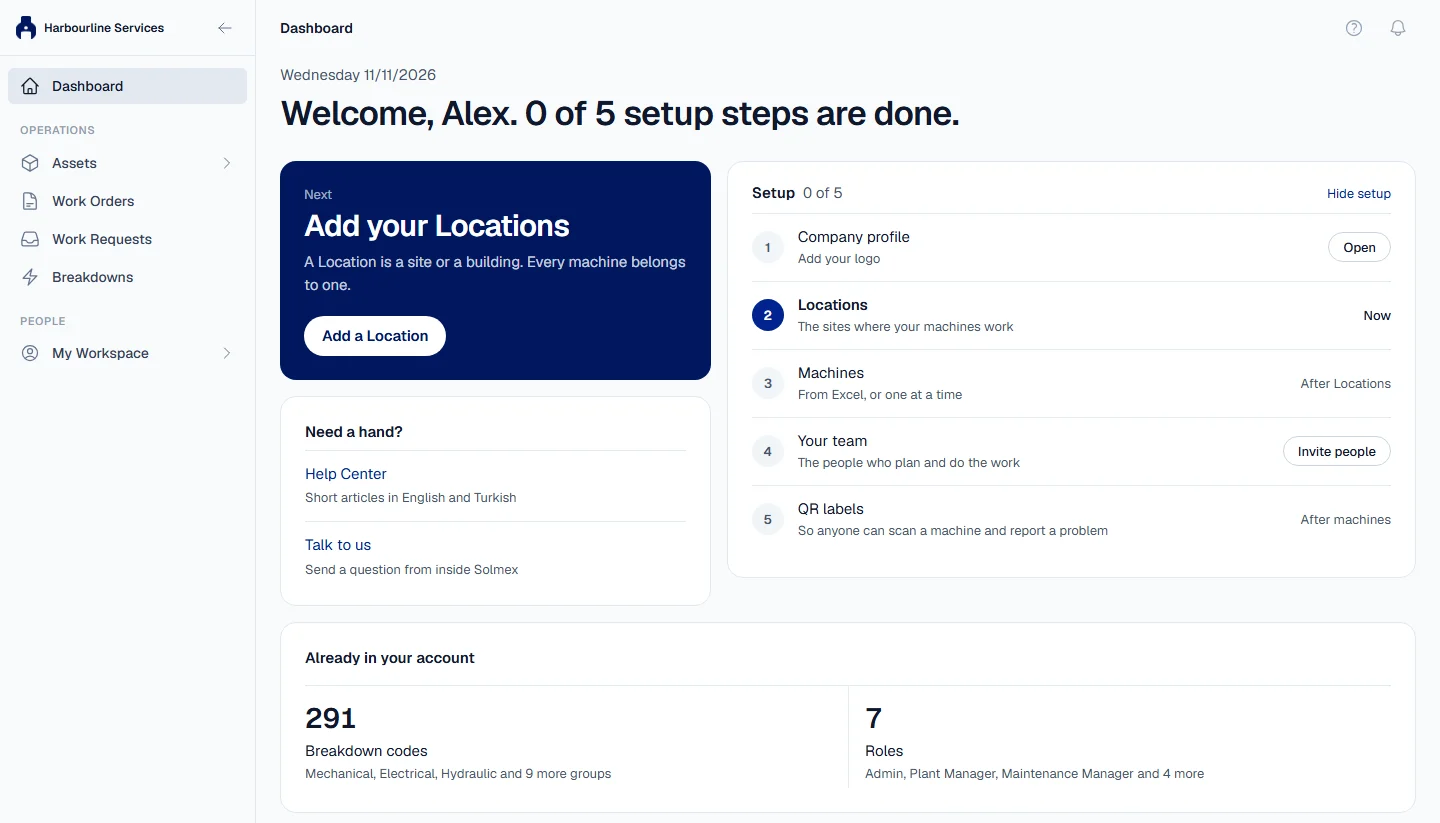
A new account used to open on a dashboard of empty figures, which says nothing about what to do next. Now, until the first Locations and machines are in, the administrator sees a setup guide instead:
- The next step, one at a time: first the Locations, then the machines, imported from Excel or added one by one, with the columns the import needs listed on the page.
- The setup steps: company profile, Locations, machines, service plans, the team and QR labels. Each is marked done as soon as the records exist, so nobody has to tick anything off.
- What the account already contains, such as breakdown codes and roles, so a new team knows what it does not have to build.
- Help when it is needed: the Help Center, and Talk to us, which sends us a question from inside Solmex.
Step by step: Add Locations and Sublocations and Import equipment from Excel in the Help Center.
Your widgets stay where you put them
The board of widgets now sits under Your board, below the new top, exactly as each person arranged it. Customize, on the Your board line, still adds, moves, resizes and hides widgets, and each person's board stays their own.
Step by step: The dashboard in the Help Center.