Key points
- Technicians see one job and one button, not a menu: Start job, then say what was done, then Finish.
- Scan a machine's QR label to report a problem, run an inspection or enter a reading, with the machine already filled in.
- Managers see the site in four answers: machines working, what to act on, the last 7 days, what is down.
- Nothing to set up: the mode follows each person's role, and one switch in the user menu changes it.
Two people, two phones, two homes
Until now a phone opened on the same board of widgets as a computer, squeezed into one column. That suits nobody well: a technician had to look past figures to find their work, and a manager had to scroll to find the figures that matter. Now each person gets the home that fits what they do.
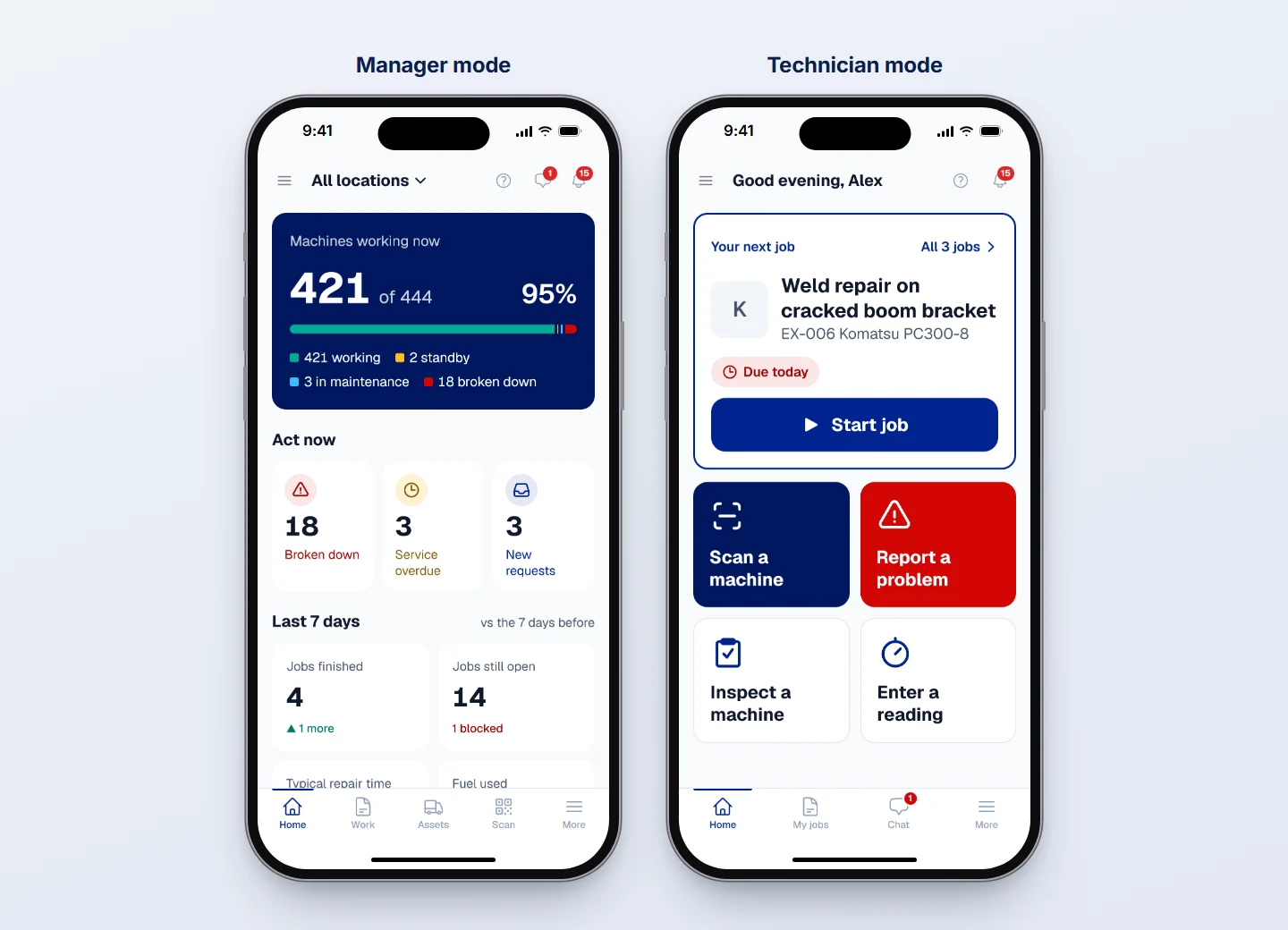
Nobody has to choose. Someone who reads the analytics, decides on work requests, approves orders, plans the schedule or administers the company opens in Manager mode; everybody else opens in Technician mode.
Technician mode: the next job and four big buttons
Technician mode is built for someone who does not use software all day and may be wearing gloves. It is one screen with no scrolling, and every button is large enough to press with a thumb.
- Your next job, with its machine and when it is due: Due today, Due tomorrow, or Late. A job already started comes first, then the one due soonest, then the most urgent. One button, Start job, opens it.
- Scan a machine: point the camera at the machine's QR label, then choose Report a problem, Do an inspection or See machine information. No searching through a list of machines.
- Report a problem: a work request in a minute, with a photo.
- Inspect a machine: scan the label, choose the checklist, and the inspection opens with the technician as the inspector.
- Enter a reading: scan the label and the machine's meter readings open, ready for today's hour meter or odometer.
- A signature reminder when a job waits for the technician's signature.
A button appears only when the person is allowed to use it, so nobody presses something only to be told no.
Finishing a job takes three steps
The job screen asks for one thing at a time. Press Start the job when the work begins. On a service, tick each step as it is done. Then answer one question, What did you do?, where a few words are enough, and press Finish the job. If the company asks for a signature, the technician signs with a finger on the same screen. The supervisor sees the work at once.
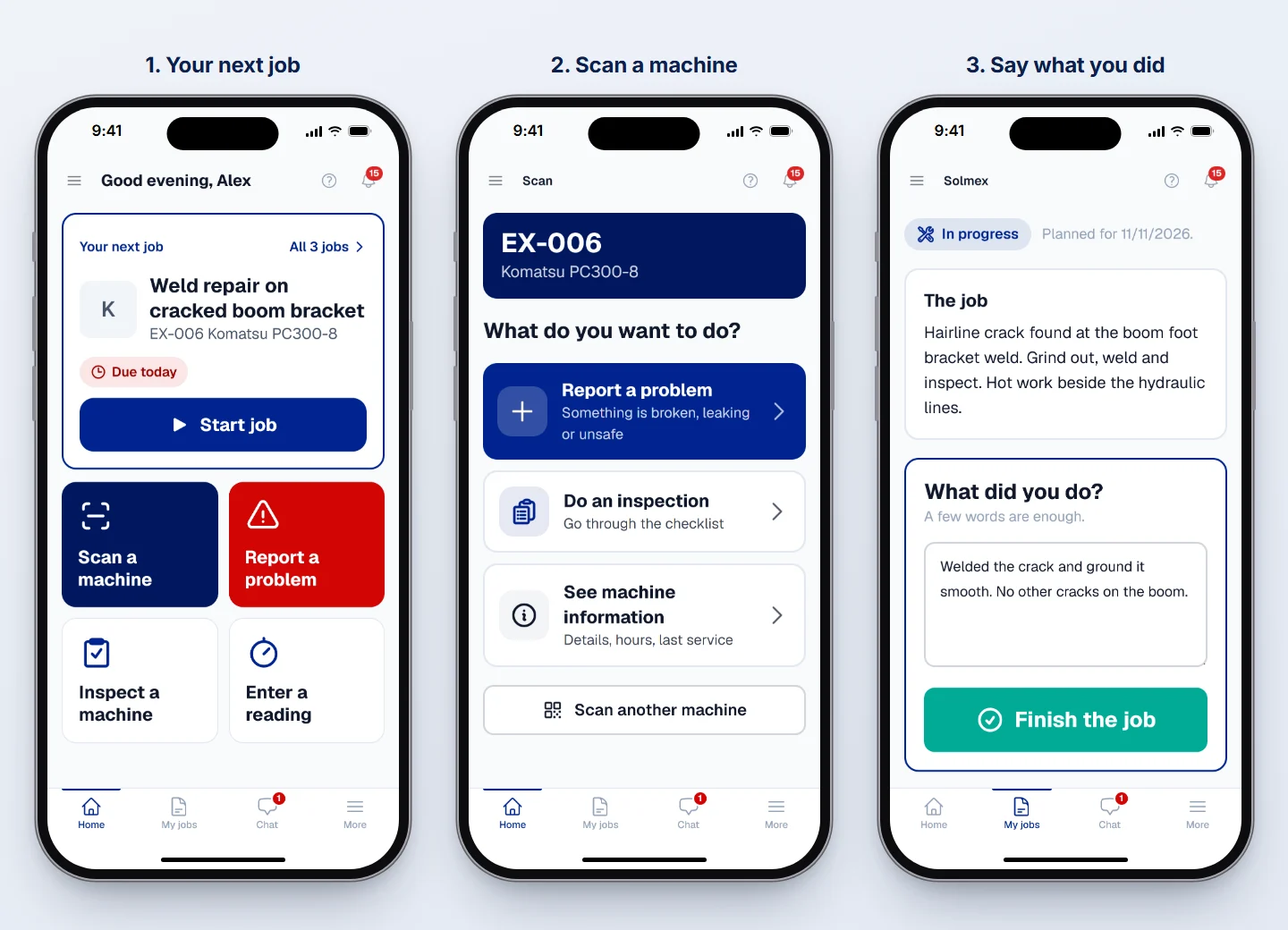
What the technician ticks and types is kept on the phone until the job is finished, so a phone that locks or a page that reloads halfway through a service does not lose the work. What the technician records, including the meter reading at a service, goes onto the same work order the office sees, so nothing is typed twice.
Step by step: Your home on a phone: Manager and Technician in the Help Center.
Manager mode: the site in four answers
A supervisor checking the site between meetings needs answers, not a report. Manager mode gives four, top to bottom, each one tap from the page behind it:
- Machines working now: how many of the machines on site are working, on standby, in maintenance, broken down or arriving.
- Act now: machines broken down, machines with a service overdue, and new work requests waiting for a decision.
- Last 7 days, against the week before: jobs finished, jobs still open, the typical repair time and the fuel used.
- Down right now: every machine broken down, longest first, and whether its repair has started.
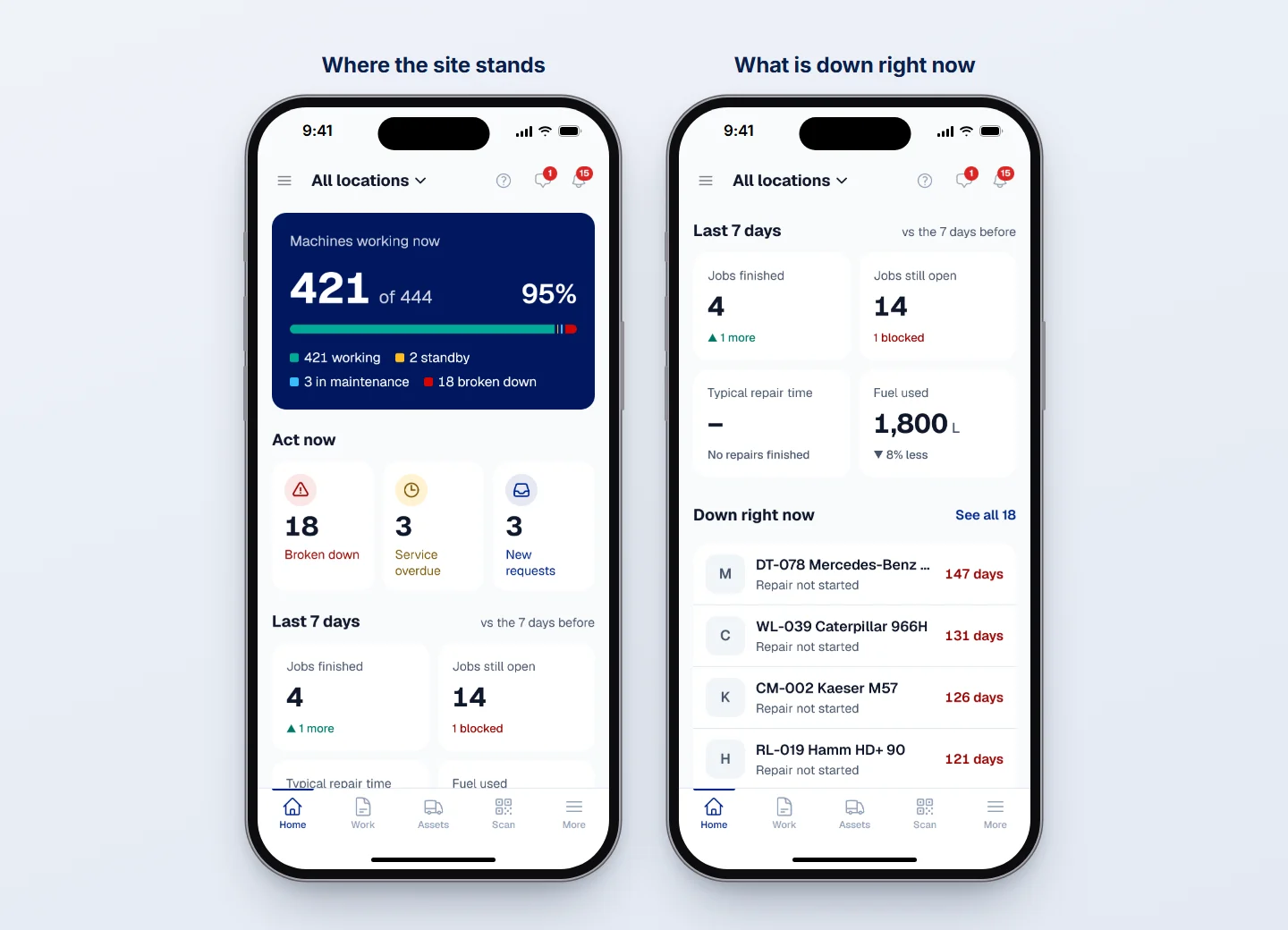
A figure a person's role cannot read is left out, never shown as zero, so a zero always means zero.
One switch for the exceptions
A supervisor who also does the work, or a technician who covers for a manager for a week, can switch under Phone home in the user menu. The choice is kept on that phone for that person only, so lending a phone or sharing a tablet changes nothing for anybody else. On a computer or tablet, Solmex opens the full dashboard as before.
Step by step: Your home on a phone: Manager and Technician in the Help Center.